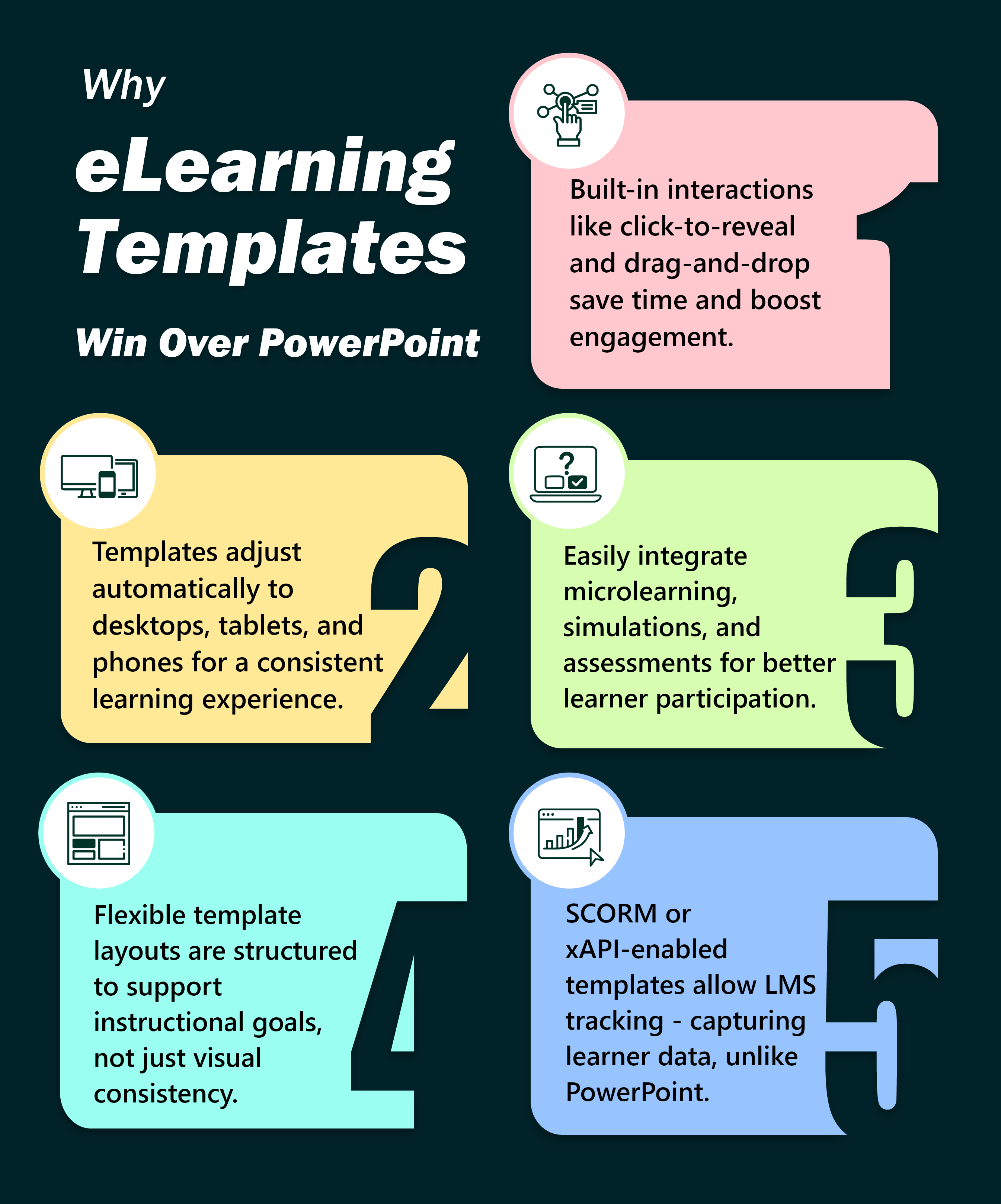
When you start designing an eLearning course, it can be easy to choose a PowerPoint template, add a title, and add a few bullet points. But there’s a big problem: PowerPoint is for presentation, not learning.
In contrast, Adobe Captivate templates are built with one main purpose: to help learners engage, interact, and apply what they learn. In this blog, we’ll explore how eLearning templates in Captivate differ from PowerPoint templates, and how they can help you build better, smarter courses.
power point
eLearning screen
1. Start with the most important thing: interaction
What’s the biggest difference between Captivate and PowerPoint? Interactivity.
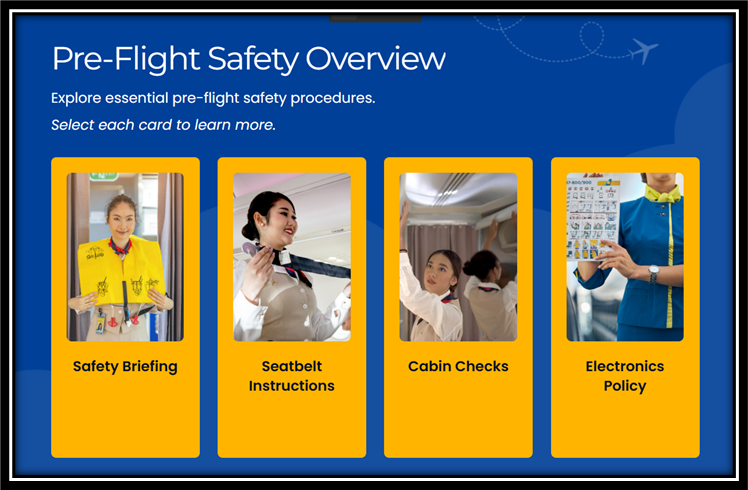
PowerPoint templates are static. You can click “Next” and go through the slideshow, but that’s it. Captivate templates include built-in interactive elements such as:
- Click to show section
- drag and drop activity
- scenes and branches
- Quizzes with instant feedback
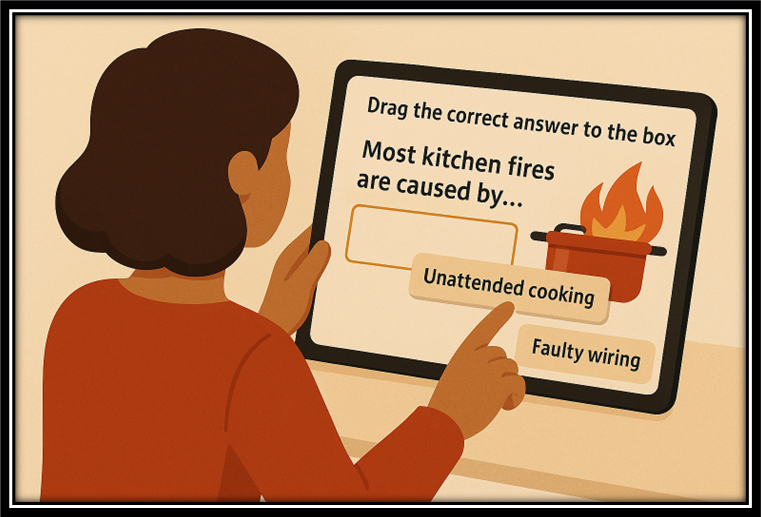
These aren’t just bells and whistles. They help learners engage with content, try out new ideas, and get immediate responses. This is a huge leap from just reading slides.
2. Use branding without losing space
Branding is important, but too many brands can be a hindrance in a learning environment. In PowerPoint templates, large logos and banners often take up valuable space that could be used for content or interaction.
Header and footer brand blocks in Adobe Captivate let you place your logo, colors, and key brand elements on each slide without disrupting the main learning area. They help maintain consistency, enhance professionalism, and maintain brand visibility while allowing learners to focus on the content.
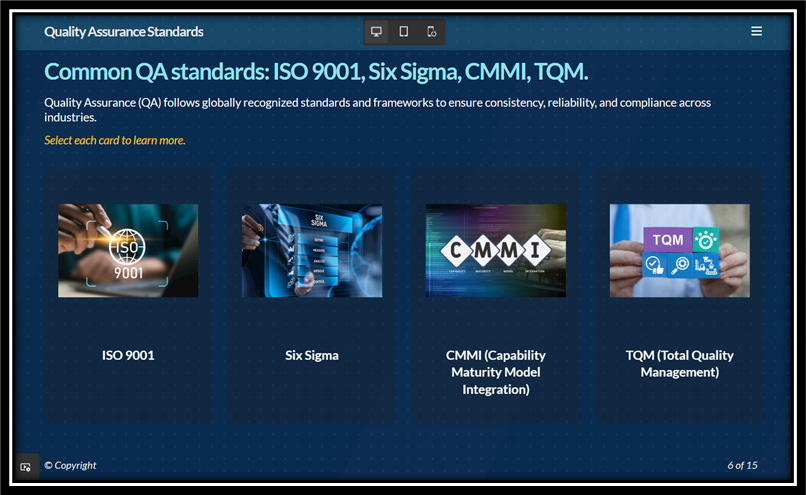
You get the best of both worlds: your brand stands out while your learners stay engaged.
3. Templates that fit your content
In PowerPoint, templates usually control your layout. You’re stuck with a fixed format: headings at the top, bullets below, and not much else.
Captivate template content takes precedence. You can choose a layout designed for a specific interaction, such as showing steps in a process or setting a scene, and easily change the surrounding content to match your message.
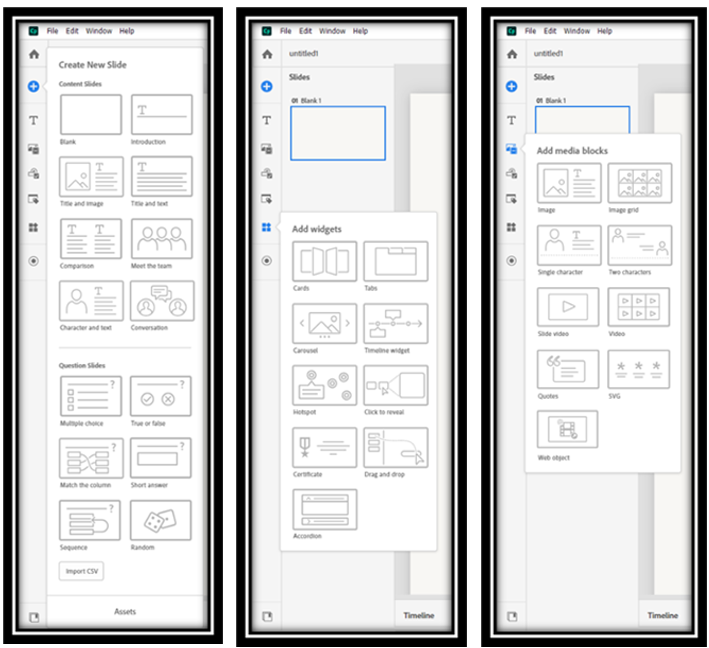
The layout adapts to your ideas, not the other way around.
4. Designed for learning, not just for looks
PowerPoint templates are designed for visual appeal. They are designed to make a lasting impression in meetings. But learning is not about impressing others, but about helping others understand and remember new things.
Captivate templates are built with learning in mind. They are designed to:
- Highlight key ideas
- Support learner actions
- Make navigation intuitive
- Direct attention to what matters
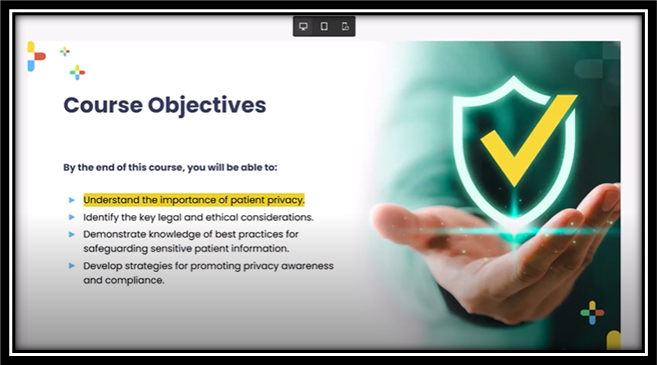
You can still make them look great, but the design is always in the service of learning.
5. From structure to simulation
Captivate templates help you build more than just slideshows. You can use them to create:
- software simulation
- role play scenario
- Microlearning module
- Gamified quizzes
These are things that PowerPoint simply cannot do.
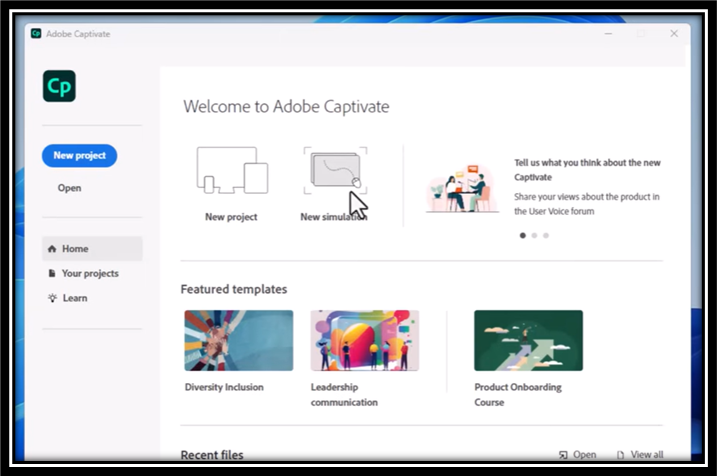
Even if you’re just getting started, Captivate’s ready-made templates give you a solid structure to work from while letting you add interactivity as your skills grow.
final thoughts
PowerPoint templates can help you present your information. But Captivate templates can help you create learning.
They provide structure, save time, and support extensive interactivity without locking you into boring layouts. Whether you’re a beginner or an experienced designer, they give you a great starting point and plenty of room to grow.
So instead of copying slides from a presentation, try using eLearning templates that are built for action. With Adobe Captivate, you can create learning experiences that are beautiful, functional, and truly impactful.